Train Widget
Live departure board for station streamers as an OBS browser source: next departures with line, destination, platform and real-time delay — for the streamed stations in DE, CH and NL (Hannover, Zürich HB, Brusio/RhB, Amsterdam Centraal …). Data from official timetables (Deutsche Bahn, SBB, NS). Pro: more rows, faster refresh, your own color. Pick a station here, paste the URL into OBS, done.
- Data source
- Deutsche Bahn · VBBtransport.opendata.ch · NS
- Updates
- 10–60 s by plan
- Browser source
- per setting
Real timetable data — this is exactly how the widget appears in OBS or your IRL app.Recommended source size: 408 × 332 px
Selection of supported, live-streamed stations — more will follow as free data sources become available.
Where the camera looks: outbound = departing trains, inbound = arriving, both = through-line (merged by time).
How many departures the board shows.
“Automatic” follows your overlay language (German: 24-hour, English: 12-hour AM/PM).
On the free plan the widget shows a subtle castlayer.de watermark. Pro removes it.
Images
What it looks like
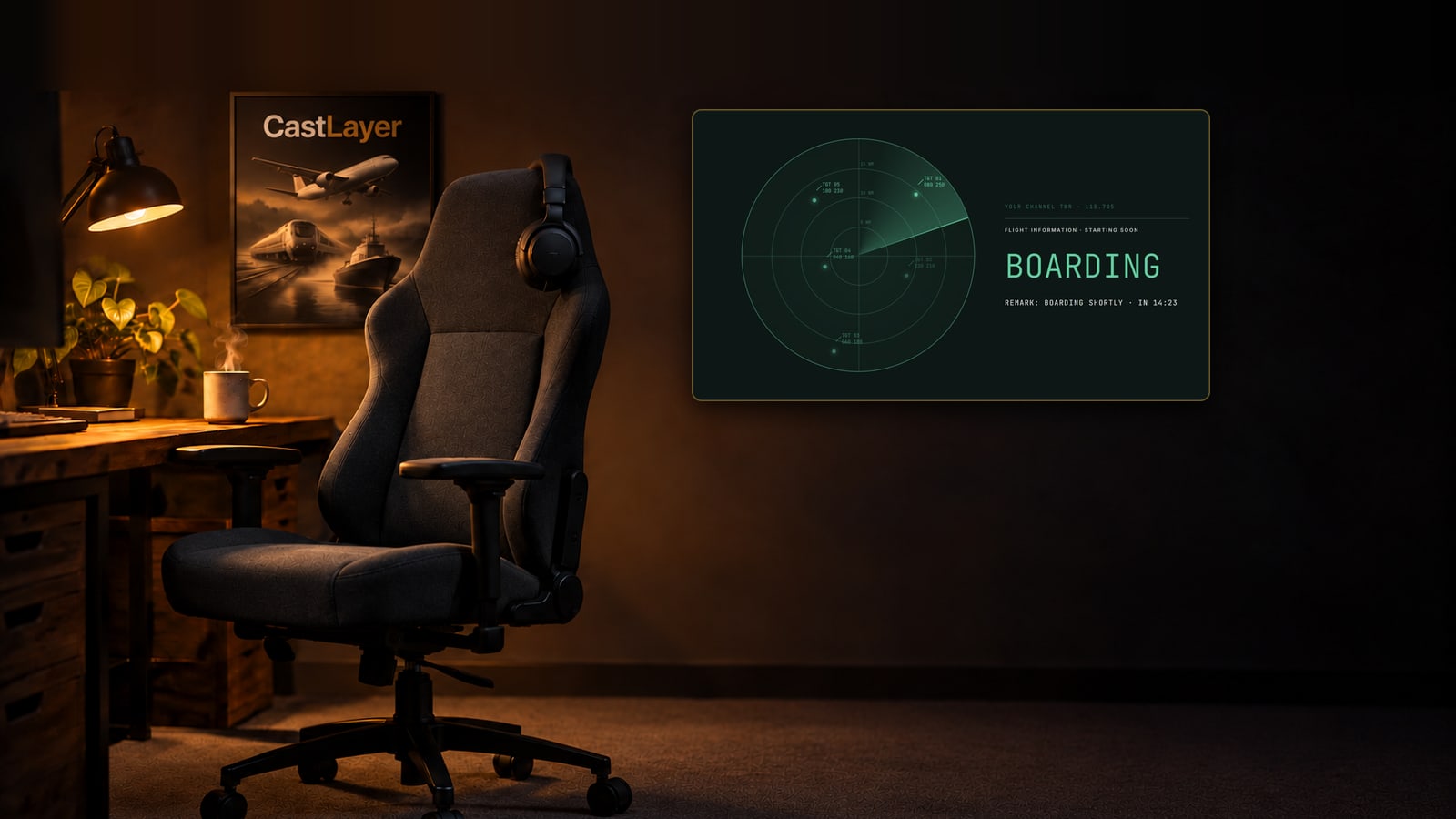
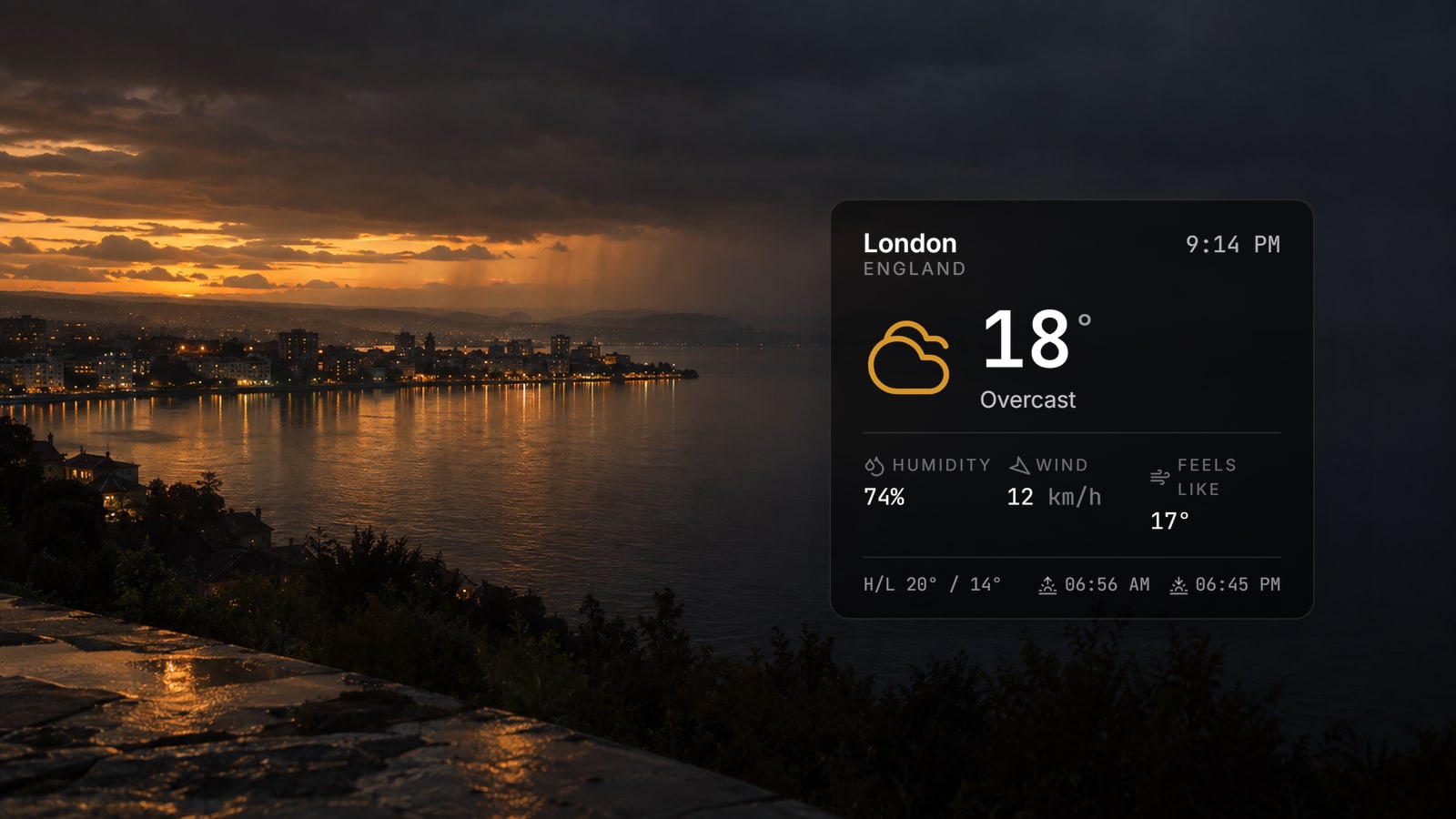
Examples from a stream. Your real preview is above.
What the train widget does in each plan
| Feature | Free | Pro | Pro Live |
|---|---|---|---|
| Live departure boardReal-time delays & platform | |||
| All supported stations (DE/CH/NL) | |||
| Departures on the board | 4 | 6 | 8 |
| Refresh rateWith Pro Live, delays & platform changes show up almost instantly | every 60 s | every 30 s | every 10 s — near-live |
| Saved widget scenesConfigurations in the dashboard – nobody counts running browser sources | 2 | 6 | unlimited |
| Your own brandingLogo, name, accent color & font | — | ||
| No castlayer.de watermark | — |
Setup
In your stream in three steps
- 01Set it upPick a place, airport or style above – the preview shows the result.
- 02Add the URL to OBSCopy the address and add it to OBS as a browser source. The right size is listed with the widget in your dashboard.
- 03Manage in the dashboardSaved widgets live under “Widgets” in your dashboard, where you can change the settings later.